 AirFly Studios
StepAway Quick Start
StepAway turns long sitting into short walking breaks. Your Mac counts your work time, and when a break starts you take a short walk. Your Apple Watch or iPhone counts the steps, and the next work period begins when you're done.
- A Mac with StepAway for Mac (it tracks your work time)
- An iPhone with StepAway (it counts steps and connects to the Mac)
- Optional: an Apple Watch. The Watch app installs with the iPhone app and counts steps on your wrist.
Watch app missing? Open the Watch app on iPhone, find StepAway and tap Install.
1. Set up your Mac
Open StepAway on your Mac. A short setup walks you through four pages:
- Welcome: what StepAway does.
- Your workday: how long each work period is (30 minutes is a good start), your working hours, lunch and working days.
- Your walks: StepAway suggests a step goal per break from your age, height and sitting time. These details stay on your Mac.
- Connect: pair your iPhone, allow Bluetooth for the Watch, and allow notifications.
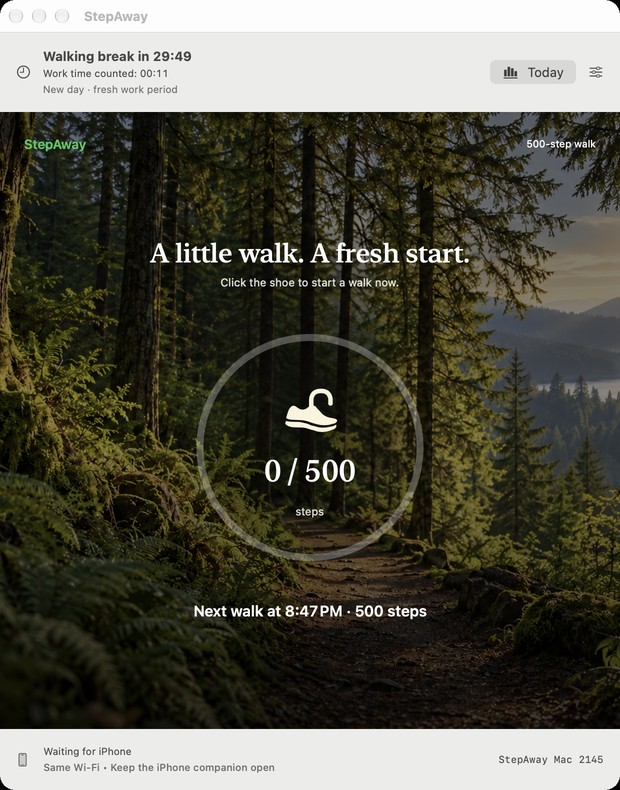
2. Set up your iPhone
Open StepAway on your iPhone. The welcome explains how steps are counted, then helps you connect to your Mac. Keep both on the same Wi-Fi, allow Local Network, and tap Connect on both devices. After that they reconnect by themselves.
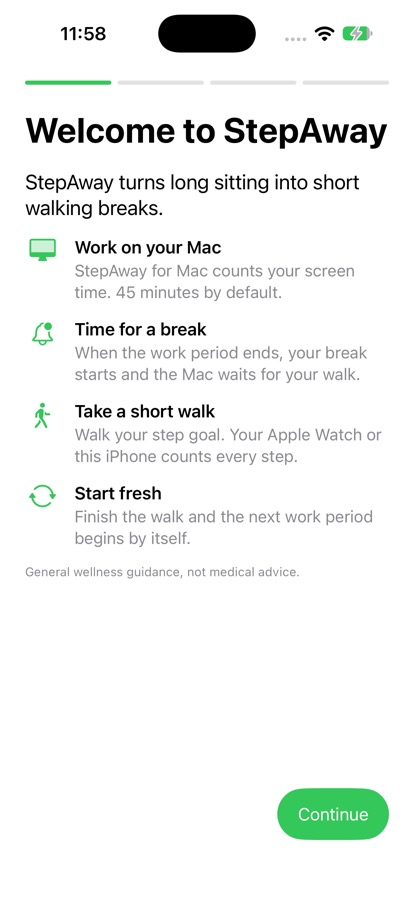
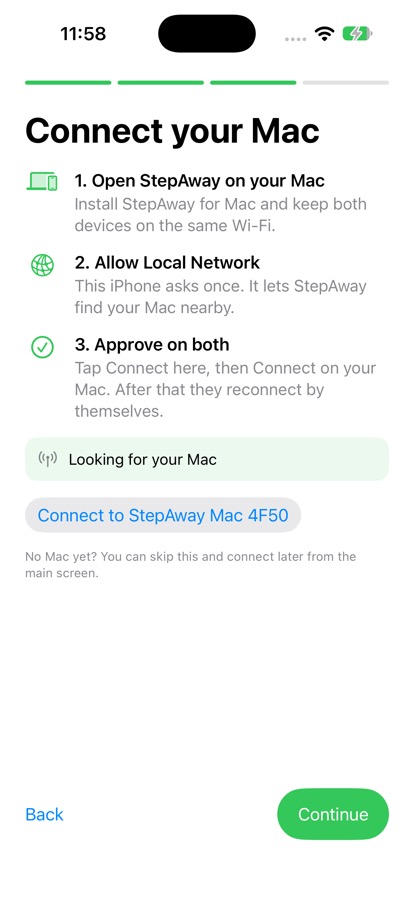
3. Your first break
- Work as usual. StepAway counts time while your Mac screen is on and unlocked. Sleep, lock and time away pause it.
- Get a heads-up. A few minutes before the break you get a reminder.
- Break time. StepAway locks your Mac screen. Only real steps open it, not a tap and not a few steps around the desk.
- Walk your goal. Your Watch or iPhone counts the steps. The Mac shows your progress live.
- Start fresh. When you reach the goal, the screen unlocks and the next work period begins.
Need to walk now? Tap the shoe on your iPhone or Mac to start a walk any time.
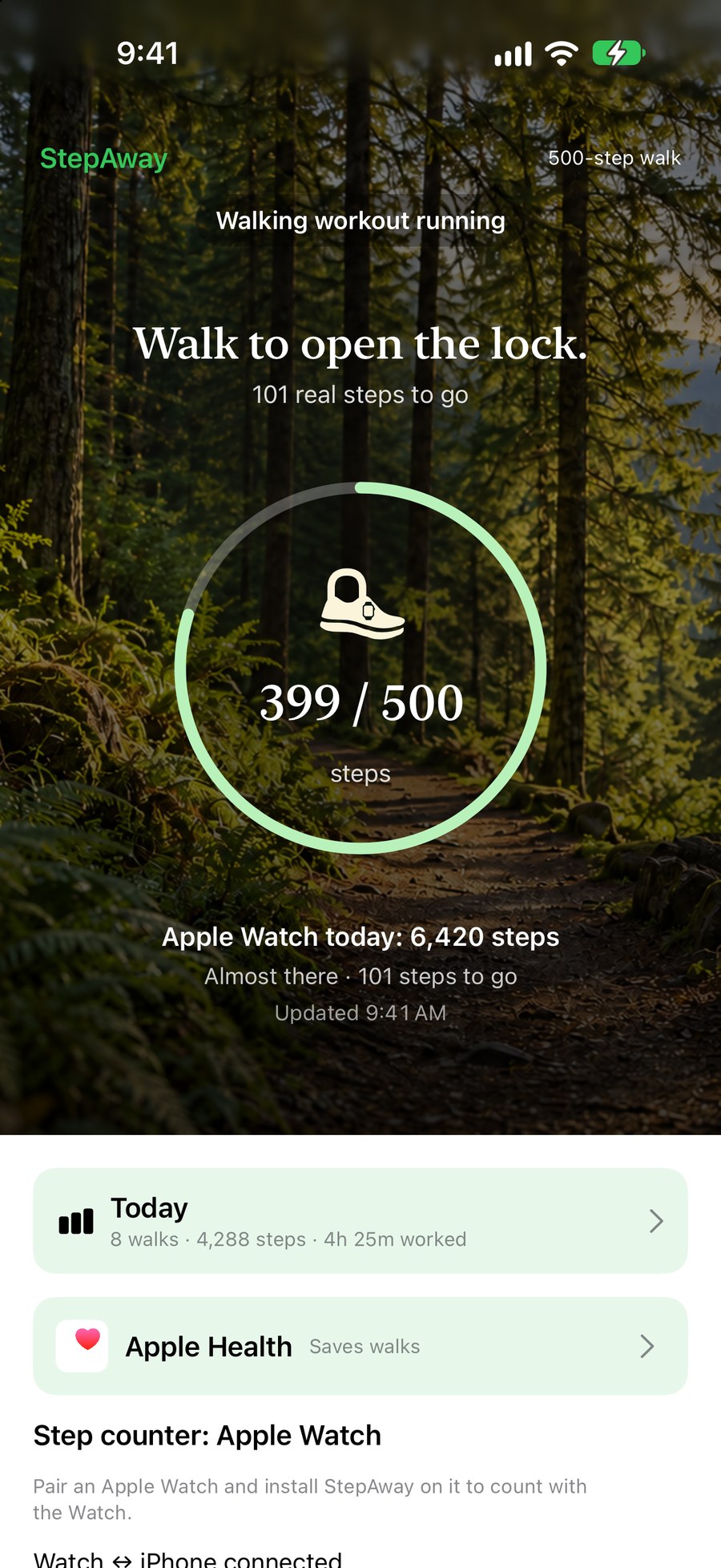
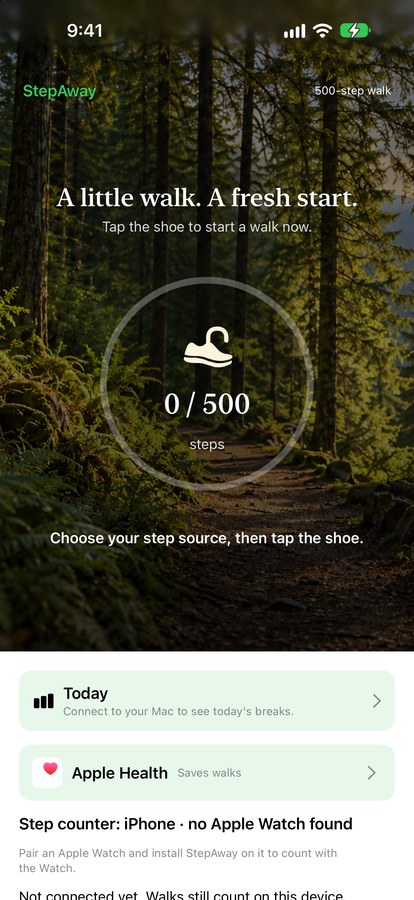
4. Apple Watch or iPhone?
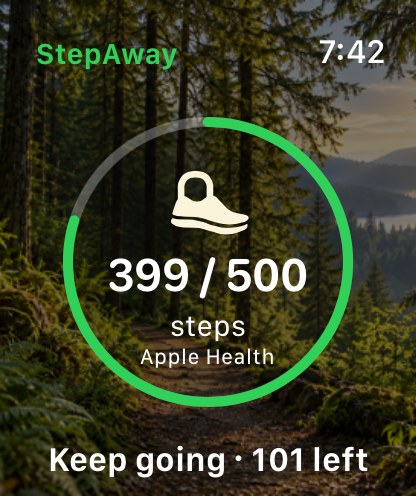
StepAway picks automatically. If StepAway is on your Apple Watch, the Watch counts and each walk saves to the Fitness app as a walking workout. Add StepAway Steps to a watch face corner (for example Infograph) to see your progress at a glance. Without a Watch, carry your iPhone while you walk. You can choose in the iPhone app under Step source.
5. Make it yours
On your Mac, open the sliders button for Work, walk, repeat:
- Work period and warning before each break
- Working hours, lunch and days, so no breaks happen outside them
- Take today off when you need a break from breaks
- Suggest… to get a new step goal
Check Today on Mac or iPhone to see your walks, steps on breaks and work time.
Good to know
- Keep the iPhone app open during a walk for the fastest updates on your Mac.
- In a real emergency, press and hold Emergency skip on the Mac break screen.
- Turn on Open at login on Mac so breaks keep working after a restart.
Help & Feedback
Scroll down on the iPhone main screen: Report a Bug and Request a Feature are one tap away, and the ⋯ button holds this guide, the FAQ, the tutorial replay and rating. On Mac, open the StepAway menu bar icon for the same two buttons and a Help submenu.

More answers: StepAway Support & FAQ · Email support@airflystudios.com